
How to Split a PDF (Free & Online)
Upload your PDF to PDF24 — fully free, no limits. For simpler interface, iLovePDF gives 2 free tasks per day. Before splitting, keep the original PDF and decide whether you need every page separately, selected ranges, bookmarks, or odd/even pages. For confidential documents, confirm where processing occurs before uploading.
Step-by-step
Choose a free PDF splitter
For unlimited splits with no signup, use PDF24 — open-source, 24 tools, and fully free. For a streamlined one-task interface, iLovePDF handles split in under 10 seconds with 2 free tasks daily. For advanced options like splitting by bookmarks, Sejda gives you more control with 3 free tasks per day. Keep the original PDF unchanged, record the requested page ranges, and check the output count and page order after processing. A quick visual review prevents a correct-looking ZIP from hiding a missing or duplicated page.
Upload your PDF file
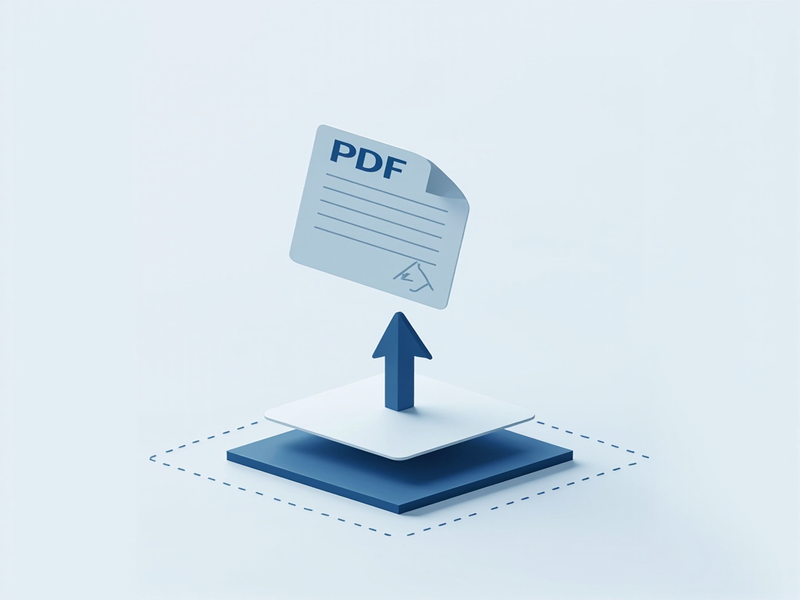
Drag and drop your PDF into the upload area or click to browse. PDF24 accepts files up to 100MB and runs entirely in your browser — no upload to external servers. iLovePDF uploads to cloud servers for processing, so for sensitive documents the offline desktop version is safer. Keep the original PDF unchanged, record the requested page ranges, and check the output count and page order after processing. A quick visual review prevents a correct-looking ZIP from hiding a missing or duplicated page.
Select split mode
Most tools offer three split modes: split every page into separate files, extract specific page ranges (like pages 1-5), or split by bookmark. Sejda supports all three plus an odd/even page split mode for printing booklets. For a 50-page report, splitting by chapter bookmarks saves time over manual page range entry. Keep the original PDF unchanged, record the requested page ranges, and check the output count and page order after processing. A quick visual review prevents a correct-looking ZIP from hiding a missing or duplicated page.
Choose pages to extract or split points
Enter page ranges like '1-3, 7, 10-12' in the text field, or click 'Split every page' for one file per page. PDF24 shows a visual page preview so you can verify selection before processing. For complex splits, Sejda lets you draw split points directly on the page preview. Keep the original PDF unchanged, record the requested page ranges, and check the output count and page order after processing. A quick visual review prevents a correct-looking ZIP from hiding a missing or duplicated page.
Click Split and download
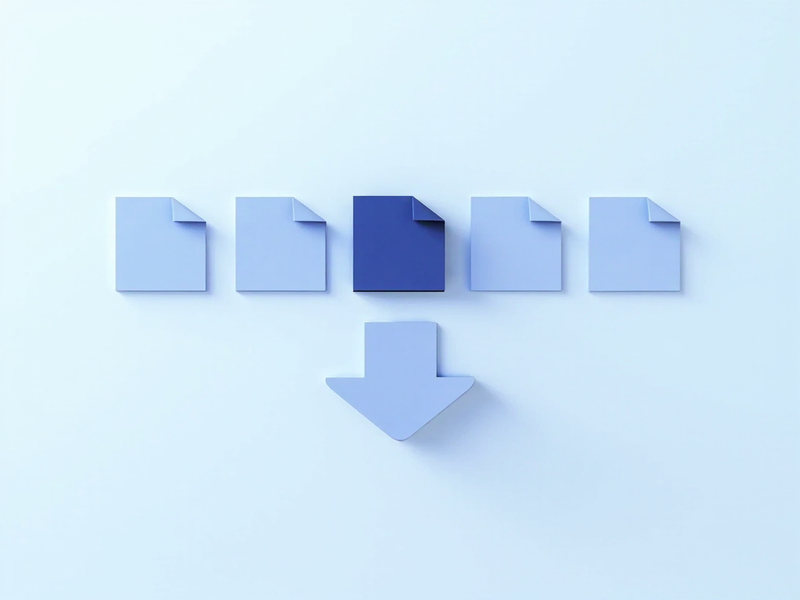
Hit the split button and wait 5-15 seconds depending on file size. PDF24 processes locally so larger files complete faster. Download as a ZIP file containing all split PDFs, or download individually. The original PDF stays untouched — split files are new exports with sequential naming like 'document_page_001.pdf'. Keep the original PDF unchanged, record the requested page ranges, and check the output count and page order after processing. A quick visual review prevents a correct-looking ZIP from hiding a missing or duplicated page.
Review filenames and page order
After the splitter finishes, open the ZIP or output folder and compare its files with the requested ranges. Use a stable naming pattern that includes the source name and page range, especially when several reports are processed on the same day. Open the first and last page of each output and inspect bookmarks, orientation, and searchable text. If the source contains forms or links, test one output before deleting anything; some PDF features can behave differently after extraction.
Protect the original and handle sensitive files
Splitting creates new documents but should not replace the source. Store the original in an approved location, remove temporary uploads when the workflow is complete, and check the service privacy terms for confidential material. For legal, financial, or personal documents, prefer the recorded local-processing option when it meets the job. Document the tool, page ranges, and verification result so another person can reproduce the split without opening the wrong source.
Recommended Tools