How-to Guides
Step-by-step guides to get the most out of your tools — quick answers, detailed steps, and recommended software.
Recommended
How to Convert HEIC to PDF
Upload one HEIC to iLoveIMG and download a PDF. To combine several photos into one document, use CloudConvert (10 free conversions per day).
How to Compress a PDF (Free & Online)
Upload your PDF to PDF24 — open-source, fully free, no signup. Pick Recommended compression for email; skip Extreme on scanned pages.
How to Batch Convert PNG to JPG: 4 Fast Methods for Any Workflow
CloudConvert handles online batches fast; XnConvert and ImageMagick do hundreds of files locally.
How to Convert JPG to PNG: 4 Free Methods
CloudConvert converts JPG to PNG in one click. For no upload, Squoosh runs locally in your browser with lossless output.
All Guides
How to Convert PNG to JPG for Web: Optimize Images for Page Speed
Use Squoosh at quality 75-80 for hero images and 60-70 for thumbnails — JPGs are typically 60-80% smaller than PNGs and load much faster on web pages.

How to Convert PNG to JPG in Lightroom: Photographer's Workflow
Library → Export with JPEG Quality 80-85 — Lightroom Classic handles any PNG with full metadata. Darktable is a free alternative.

How to Convert PNG to JPG in Photoshop: 3 Workflows
File → Export → Export As → JPG at quality 80-85 is the modern path in Adobe Photoshop. Save for Web (Legacy) gives the most control for web output.

How to Convert PNG to JPG on iPhone: 3 Native Methods
For one file, Photos on iOS exports JPEG in three taps. For batches, use iMazing Converter or build a Shortcuts one-tap converter — runs locally.
How to Convert PNG to JPG Offline: 4 Free Tools That Don't Upload
IrfanView is the gold standard on Windows, while XnConvert and ImageMagick run locally on any OS.
How to Convert PNG to JPG on Mac: 4 Free Methods
For one file, open the PNG in Preview and use File → Export As → JPEG with quality 85. For batches, build an Automator Quick Action that converts a whole folder with one click.
How to Convert PNG to JPG on Windows: 4 Free Methods
For one file, open the PNG in Microsoft Photos and use Save As → JPEG. For batches of dozens, IrfanView is the fastest free Windows option.
How to Convert PNG to JPG Without Losing Quality: Step-by-Step Guide
CloudConvert at quality 85 keeps PNG-to-JPG output nearly identical to the source. Squoosh runs locally with a per-image slider.

How to Convert PNG to JPG Without Losing Quality: 7 Methods That Work
CloudConvert is the fastest online option for PNG-to-JPG without visible quality loss. Squoosh runs entirely in your browser.

How to Keep Transparency When Converting PNG to JPG (or Use Better Formats)
JPG cannot preserve transparency — pick a background color in CloudConvert or Photopea. Use WebP or PNG if you need transparency.

How to Remove Watermarks Without Losing Image Quality
Unwatermark.AI produces the cleanest results in direct quality comparisons — upload your highest-resolution image and let the AI reconstruct the watermarked area. For stubborn artifacts, run the image through WatermarkRemover.io as a second pass to catch residue the first tool missed.
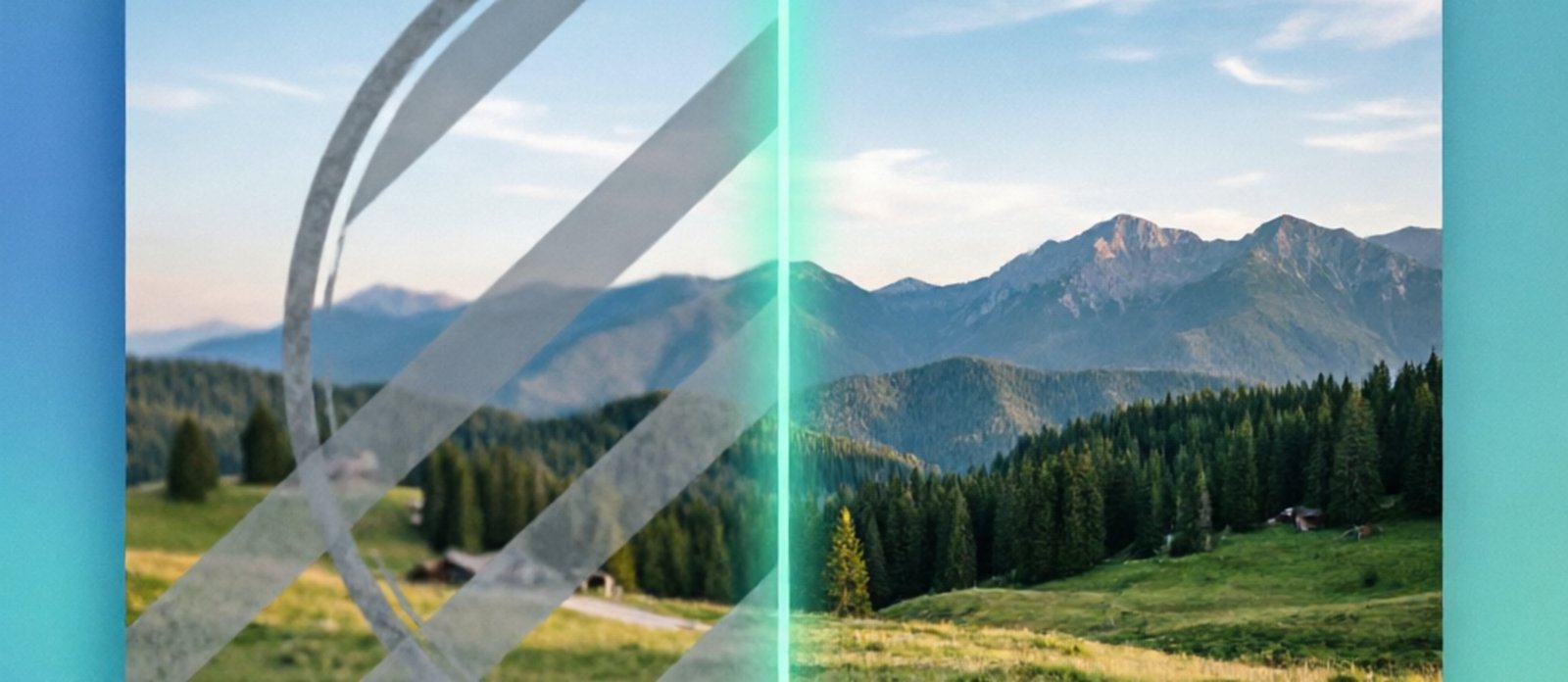
How to Remove a Watermark from an Image
Upload your image to WatermarkRemover.io for automatic one-click removal, or use Unwatermark.AI for cleaner output quality — both detect and erase watermarks in under 10 seconds. For 100+ images at once, Dewatermark handles batch processing. For related workflows, compare Best HEIC Converter Tools when the source is an HEIC photo, or browse Best Screenshot Tools when you are documenting the approved result.

How to Convert WebP to JPG: 5 Quick Methods That Work
For most people, CloudConvert is the fastest online option for converting WebP to JPG — it supports batches and keeps quality. If you'd rather not upload anything, Squoosh runs entirely in your browser. For batch processing dozens of WebP files at once on your desktop, XnConvert is the top choice.

How to Convert Image to PDF (Free & Online)
Upload your images to PDF24 — free, no limits, works directly in your browser. For batch conversion of 20+ images, iLovePDF is faster with its drag-and-drop reordering.
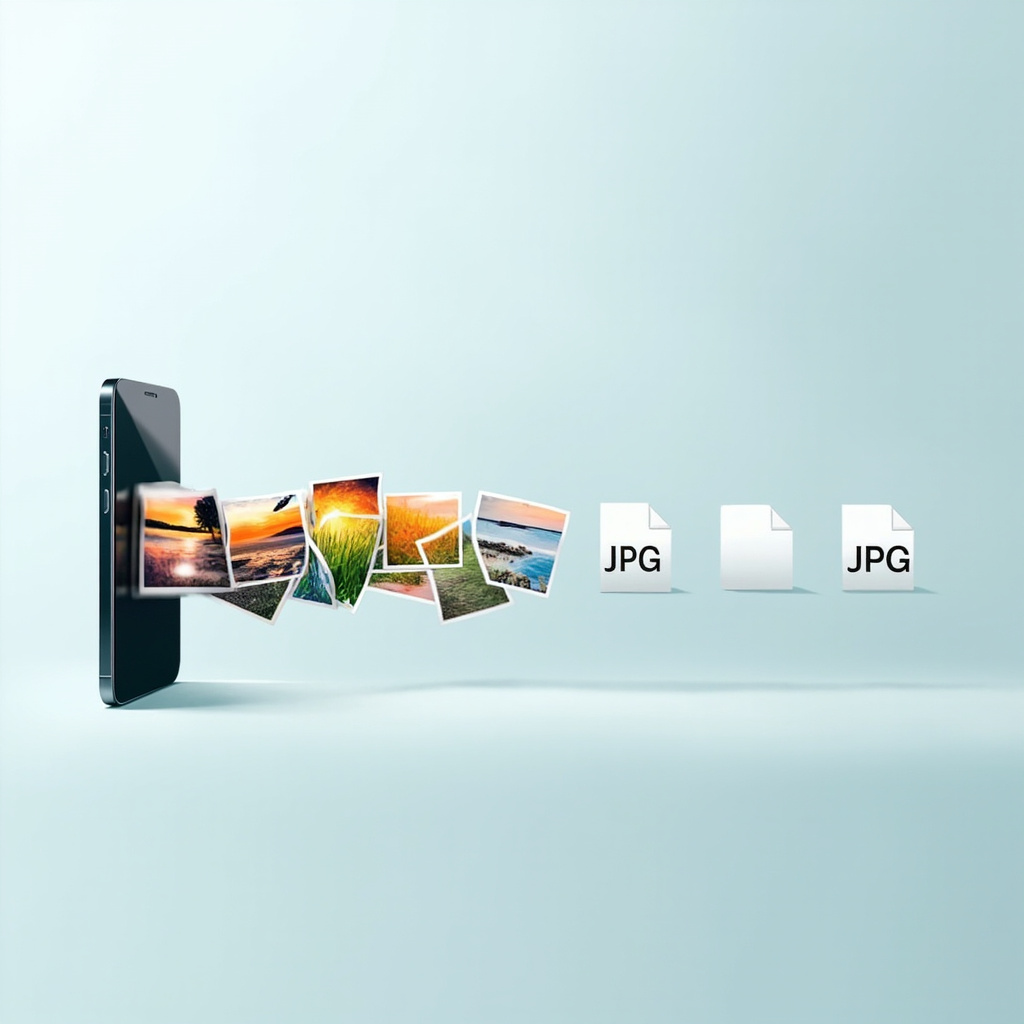
How to Convert HEIC to JPG (Windows, Mac, iPhone, Online)
On Mac, select HEIC files in Finder, right-click, and use Quick Actions → Convert to JPEG. On Windows, install HEIF Image Extensions from the Microsoft Store, then use Microsoft Photos to export as JPG. For batch conversion on any OS, iMazing Converter is free and handles hundreds of files at once.
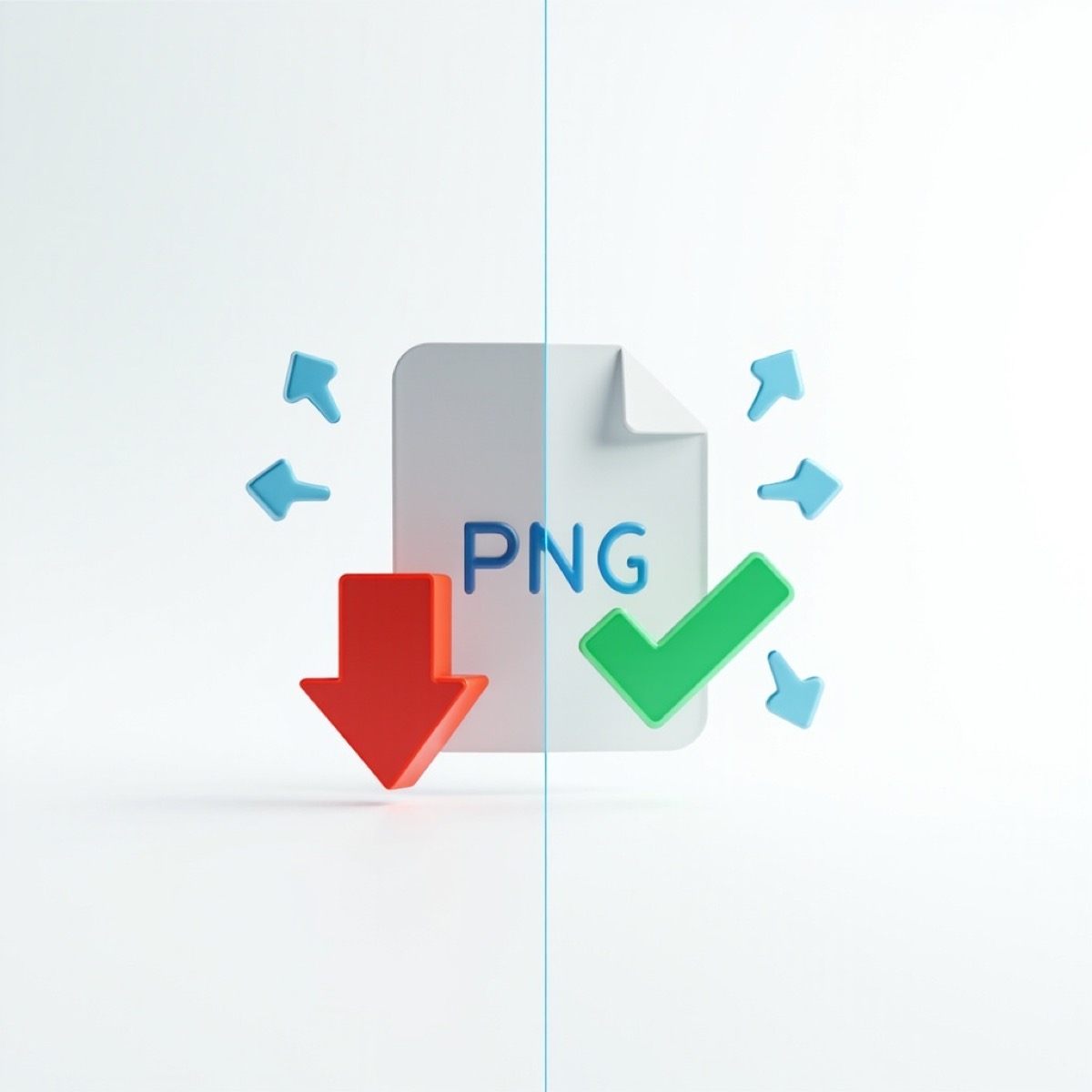
How to Compress PNG Without Losing Quality
Upload your PNG to TinyPNG for automatic smart compression — typically 60-70% smaller with no visible quality difference. For offline use, Squoosh gives real-time quality control in your browser. Before compressing, make a copy and check whether the PNG needs transparency, sharp text, or pixel-perfect output. Those requirements determine whether lossless optimization, smart lossy compression, resizing, or WebP is appropriate.
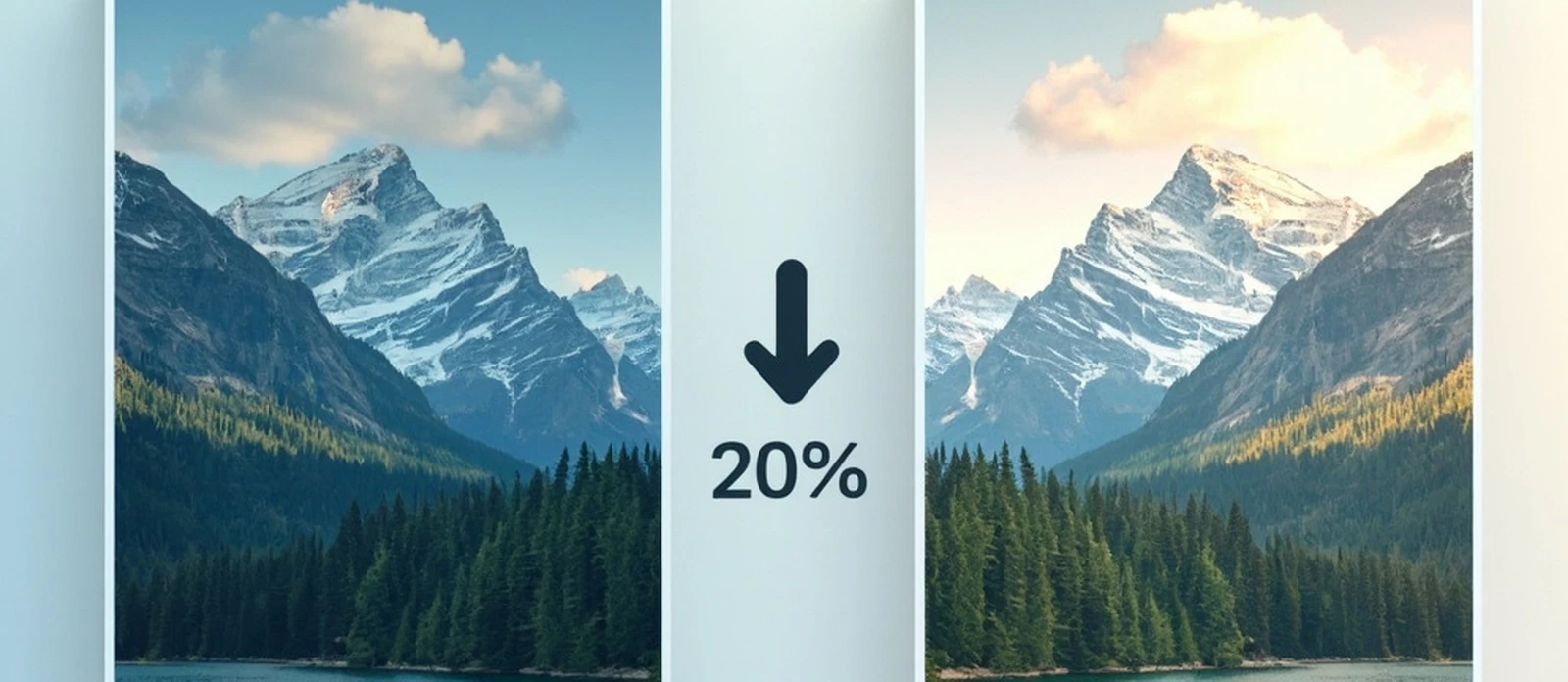
How to Compress Images for Website
Upload your image to TinyPNG or Squoosh — both compress files by 50-80% in the browser with no signup. Download the smaller version and replace the original on your server. Before you begin, keep the original file, note its dimensions and format, and decide whether the destination needs transparency or editable metadata. A small before-and-after sample makes the quality decision reversible.

How to Reduce Image File Size
Upload your image to TinyPNG or Squoosh — both compress files by 50-80% in the browser. For photos, aim for 75-80% quality. For screenshots and graphics, 50-60% works well since solid-color areas compress more efficiently. Before changing anything, record the original dimensions, format, file size, and destination use. A photo, transparent graphic, thumbnail, and print file need different trade-offs, so choose the smallest change that meets the real display requirement.
How to Split a PDF (Free & Online)
Upload your PDF to PDF24 — fully free, no limits. For simpler interface, iLovePDF gives 2 free tasks per day. Before splitting, keep the original PDF and decide whether you need every page separately, selected ranges, bookmarks, or odd/even pages. For confidential documents, confirm where processing occurs before uploading.
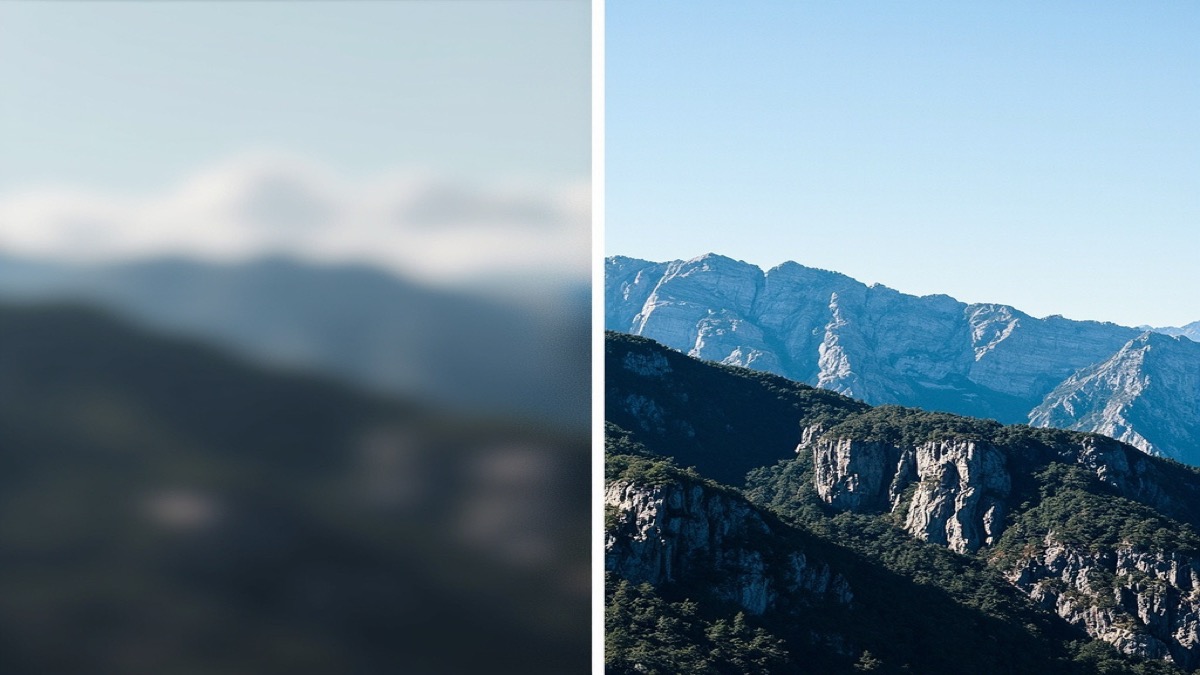
How to Upscale an Image Without Losing Quality
For most images, Upscayl is the best free option — it uses AI models to add detail without artifacts. For professional photo restoration, Topaz Gigapixel gives the highest quality but costs $29/month. For batch processing and online use, LetsEnhance offers 10 free credits on signup. Before upscaling, keep the highest-quality original and decide the final use, dimensions, and acceptable artifact level. A 2x web image, a print file, and an illustration may need different models and output formats.

How to Take a Scrolling Screenshot
ShareX is the best free scrolling screenshot tool for Windows. On Mac, Shottr does it for free at just 2.3MB. Both auto-scroll and stitch pages into one image. Before capturing, close popups, trigger lazy-loaded content, and decide whether the result is evidence, documentation, or a temporary image. That choice determines whether you need redaction, PNG quality, a smaller JPEG, or a share link. For a broader feature comparison, see Best Screenshot Tools.

How to Make Background Transparent
Upload your image to NoBG.app or Remove.bg — the AI removes the background in about 5 seconds. Download the transparent PNG for free. Before uploading, make a copy and decide where the cutout will be used. A product listing, presentation, and social graphic may need different dimensions, edge cleanup, and background colors even when the source photo is the same.